Custom Styles
View your documents your way.
Contents
Using custom styles

The easiest way to explore Custom Styles is through the Custom Style Gallery. From there you can browse the available styles in action, install them with the click of a button, and even submit your own creations for inclusion.
To add custom stylesheets from your local drive to Marked, use the . New styles will be added to the dropdown menus in Window settings and on each window, and will be named based on the base filename of the CSS file added. Store your custom CSS files in a safe place on your drive. If they move on your drive, they’ll be removed from Marked until you add them again from the new location. It’s a good idea to close open documents and remove the style from Settings before deleting or renaming a CSS file used by Marked. It won’t break anything if you don’t, but it saves some confusion.
Add Custom Styles using the Style Manager with the Add Button, or by dragging one or more CSS files onto the Settings pane.
Managing styles with the Style Manager
Launching the Style Manager gives you a single place to curate every built-in and custom theme. Click the Manage Styles… button in the pane, or simply drop CSS files onto the preferences window — Marked will import them, open the Style Manager, and select the newly added row for you. Dragging CSS files directly onto the Style Manager window works as well; when multiple files are dragged you’ll see the overlay update to “Add N Custom Styles” so it’s clear you’re importing a batch.
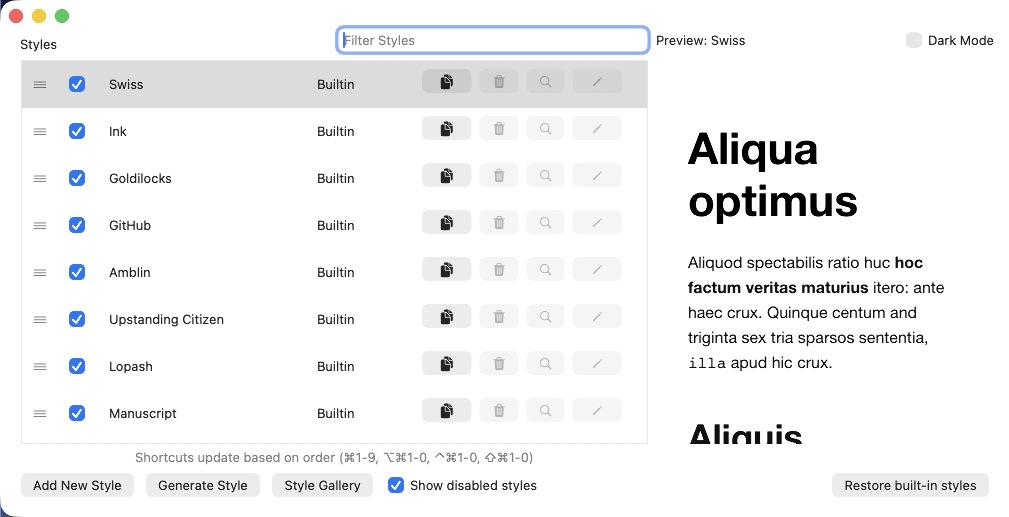
Inside the Style Manager you’ll find a sortable table that mixes built-in and custom styles. Each row offers:
- An Enabled checkbox that immediately adds/removes the style from the Style menu, Default Style popup, and keyboard shortcuts. Disabling the currently active style automatically switches to the next available entry.
- A Name column you can edit inline; changes persist and propagate to every menu. Click on the Style’s name to edit it in place.
- A Source column that calls out Built-in, Custom, or Duplicated.
- An Actions stack with buttons to Edit (opens the CSS file in your editor), Duplicate (creates a copy and a new CSS file on disk), Reveal (shows the file in Finder), and Delete (with options to remove the reference or move the CSS file to the Trash).
Rows reorder via drag and drop, and the order drives the Style menu as well as
the ⌘/# shortcut assignments, so you can literally drag styles into the slots
you want. You can also drag external CSS files into specific positions; the drop
indicator determines where the new style is inserted.
Live preview
The right pane holds a preview that renders the selected style inside a full HTML document with a comprehensive set of headings, lists, tables, code blocks, etc. The preview uses the actual CSS on disk, so edits you make in your external editor update instantly. A checkbox toggles Dark Mode preview.
You can find additional styles for use (or as examples for creating your own) on GitHub (see the examples for a quick peek at what’s there). See Creating Custom CSS for details and tips.
Additional CSS
Under the , you’ll find an option titled Additional CSS with a button labeled “Edit CSS.” Clicking this button opens a window where you can add universal CSS rules that will be applied to all styles. Note that specificity of the rules can be important when overriding some of Marked’s default styling. The main body of the document is wrapped in a div with the id “#wrapper”. Prefixing a selector with this can allow for easier overrides, e.g.:
#wrapper img { width: 100%; height: auto; }
CSS in this field is appended to the active theme. It is not a substitute for a full Custom Style: a stylesheet written only for this field is deliberately partial, and loading it through Style Manager as a theme would leave everything it does not cover unstyled.
Marked rewrites Additional CSS selectors before injection. Leading
body classes such as .mkprinting are merged onto body rather than
nested under #wrapper, so print rules in this field should use
body.mkprinting #wrapper … (see Creating Custom
CSS for the full
rewriting rules). There is no size limit or validity check on the field
— invalid CSS simply has no effect.
CSS in this field will be applied to every document, no matter what Style it’s using — including HTML export when styles are included. If you want to apply custom CSS based on conditional matches, use the Set Style, Insert CSS File, or Insert CSS actions in Custom Rules.
Print and PDF export
Marked injects a built-in @media print block (mkprintstyles) on every
preview. It sets defaults such as a 10pt base on html, body, and
#wrapper (or the size from Custom font size for export/print in
when that option is enabled), and normalizes paragraph
text with p { font-size: 1em; } and li p { font-size: 1em; } so
screen-only rules like p { font-size: 1.1429em; } do not inflate body copy
in PDFs and printed output.
PDF export may use print or screen media on the hidden WebView used for
generation. Built-in themes typically use print media; custom styles and
Fountain documents often use screen media so
layout matches the preview. That means @media print { ... } rules are not
always applied during PDF export.
For reliable PDF and Print/PDF Preview styling, prefix selectors with the
mkprinting class Marked adds to <body> during export (see Writing Custom
CSS for details and examples). In a
Custom Style file you can use .mkprinting alone. In Additional CSS,
use the body-qualified form body.mkprinting #wrapper … because that field
rewrites selectors. You can also combine either form with @media print when
you need both paths covered.
To set sizes that differ from Marked’s print defaults, add explicit rules in
your custom CSS (or in Additional CSS). Use !important when you need to
override Marked’s injected print styles — for example:
@media print {
  #wrapper p,
  body p,
  p {
    font-size: 9pt !important;
    line-height: 1.4 !important;
  }

  h1 {
    font-size: 16pt !important;
  }
}

/* Custom Style (and most theme stylesheets) */
.mkprinting #wrapper p,
.mkprinting body p,
.mkprinting p {
  font-size: 9pt !important;
  line-height: 1.4 !important;
}

.mkprinting h1 {
  font-size: 16pt !important;
}

/* Additional CSS field (selector rewriting) */
body.mkprinting #wrapper p,
body.mkprinting p {
  font-size: 9pt !important;
  line-height: 1.4 !important;
}

body.mkprinting #wrapper h1,
body.mkprinting h1 {
  font-size: 16pt !important;
}
Rules without !important may lose to later rules in mkprintstyles or to
other unqualified selectors in your sheet that still apply in print. Putting
print-only tweaks in @media print and/or .mkprinting / body.mkprinting
rules (rather than only in screen rules) keeps the preview and export behavior
easier to reason about.
Watching CSS changes
You can check a box in the Custom Styles section of the to have Marked watch the active CSS file in addition to the Markdown file you’re editing. When changes are detected on either file, the preview will update. This is useful for editing custom styles without constantly refreshing and can also be used for simple web development tasks.
This is also useful for some basic web design work and CSS experimentation (like creating custom styles). Load a Markdown file containing all the markup you want to style for, create a custom style, and watch the preview for live changes as you edit it.
Writing custom CSS
If you’re familiar with CSS, you can create your own style sheets for use in Marked. See Writing Custom CSS for details. Any time you create something new, consider submitting it to the gallery to share with other users. Be sure to cover the basics listed in the guide, and include the metadata comment at the top.
Automatic Custom Styles with StyleStealer
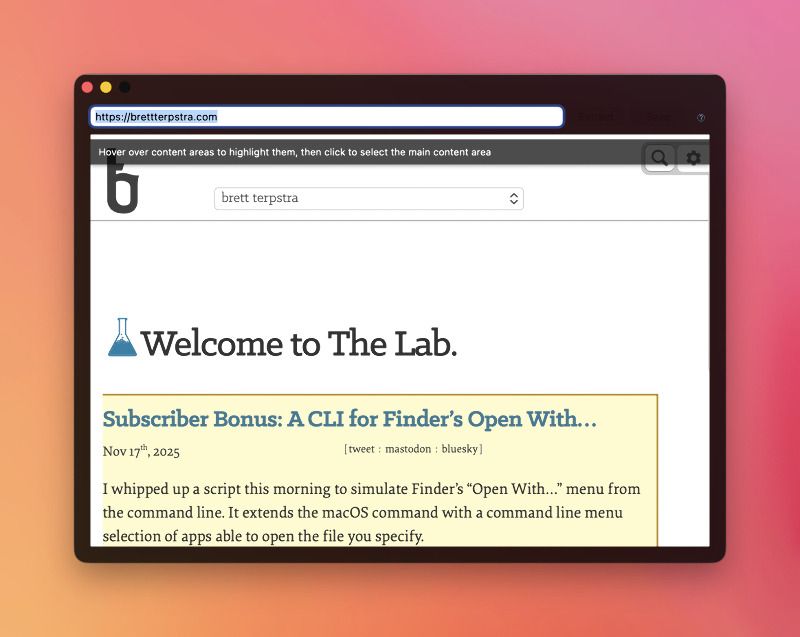
You can even automatically generate a style based on an existing website using the Style Stealer. This allows you to load a web page and grab the calculated styles for all major elements found in Markdown, then save it to a custom style.
Manage Custom Styles (rename, re-order, duplicate, and delete) from the Style Manager.