Quick Open
Quick Open provides fast access to your open documents and recent files.
Contents
Opening Quick Open
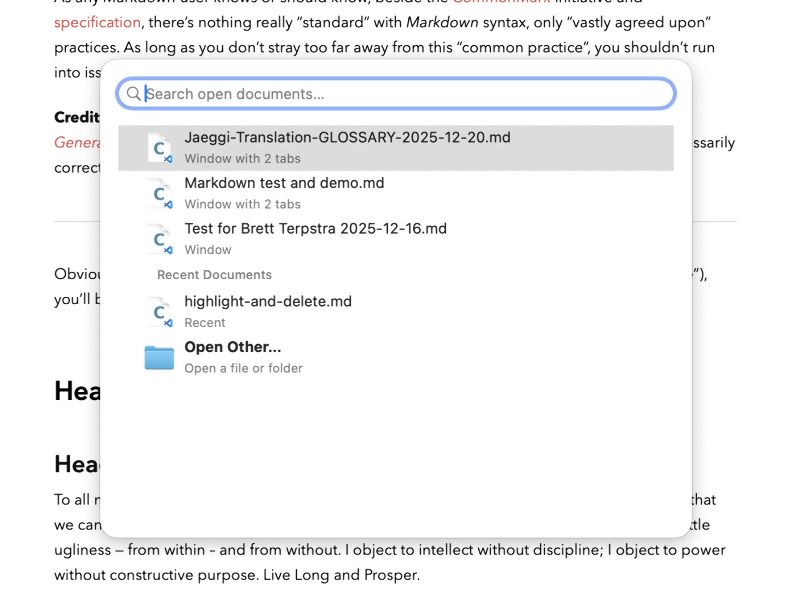
Access the Quick Open panel using ⇧+⌘+O or from the menu. The panel appears as a floating window above your current document, allowing you to quickly switch between open documents or open recent files.
Document Sections
The Quick Open panel organizes documents into clear sections:
Open Documents
At the top of the list, you’ll see all currently open documents. Documents are visually grouped by their window:
- Tabbed Windows: Documents in tabbed windows show “Window with X tabs” as their subtitle, indicating how many tabs are in that window group
- Standalone Windows: Documents in individual windows show “Window” as their subtitle
Each open document displays:
- The document’s filename as the main title
- The window grouping information as the subtitle
- A document icon
Recent Documents
Below the open documents, a “Recent Documents” separator divides the list. The recent documents section shows up to 10 of your most recently opened files that are not currently open. Each recent document displays:
- The document’s filename as the main title
- “Recent” as the subtitle
- A document icon
Open Other
At the bottom of the list, the “Open Other…” option allows you to open the standard macOS file picker to select any file. This option displays:
- “Open Other…” as the main title
- “Open a file or folder” as the subtitle
- A folder icon
Search and Filter
Type in the search field at the top of the panel to filter the list in real-time. The search matches against:
- Document filenames
- Full file paths
As you type, the list updates immediately to show only matching documents. The “Open Other…” option always remains visible at the bottom of filtered results.
Keyboard Navigation
Navigate the Quick Open panel entirely with your keyboard:
- ↑/↓ Arrow Keys: Move up and down through the list
- Return: Open the selected document or option
- Escape: Close the Quick Open panel
- Command (⌘): Hold to reveal file paths (see below)
Viewing File Paths
Hold down the Command (⌘) key while the Quick Open panel is open to see the full file path for each document in the subtitle area. Paths in your home directory are displayed using the ~ shorthand (e.g., ~/Documents/file.md). Release the Command key to return to the normal view showing window grouping or “Recent” information.
This is particularly useful when you have multiple files with the same name open, or when you need to verify the exact location of a document.
Opening Documents
- Open Documents: Selecting an open document brings its window to the foreground and switches to that document’s tab if it’s in a tabbed window
- Recent Documents: Selecting a recent document opens it in a new window or adds it as a tab (depending on your “Open documents in tabs” preference in )
- Open Other…: Selecting this option opens the standard macOS file picker dialog