Markdown Dingus
The Markdown Dingus is a specialized testing tool that helps you understand how different Markdown processors handle your content. It provides a three-pane interface where you can edit Markdown, view the generated HTML source, and see the rendered preview simultaneously.
The Dingus shares some low-level handling with Marked’s preview, such as special treatment of fenced code blocks. It does not run Custom Rules (Conductor). It uses most default settings, ignoring settings like “GitHub newlines” and “GitHub checkboxes,” so the result may differ from what you see in a normal Marked preview.
Contents
Custom Rules do not apply
The Dingus is a processor sandbox: your Markdown goes straight to the built-in processor you choose (MultiMarkdown, CommonMark (GFM), Discount, or Kramdown). Custom Rules never run there — no preprocess actions, find/replace rules, shell commands, Insert Text/File, or other Conductor steps.
In a normal preview, Custom Rules can change the Markdown before rendering, set styles, inject CSS or JavaScript, and more. None of that happens when you edit in the Dingus. Changing Custom Rules while the Dingus is open does not update its preview.
The Dingus can use the same preview CSS styles as the main window (via the style menu on the output pane). That is appearance only; it is not the same as running Custom Rules.
Open in Dingus from a preview loads the document’s current Markdown buffer. If Custom Rules already ran when that file was opened in Marked, you may see their effects in the text (for example, text inserted by a rule), but the Dingus will not re-apply rules as you type. To test Custom Rules, use a standard Marked preview, or save from the Dingus and open the file with Open in Marked.
What is a “Dingus”?
A “dingus” is a term borrowed from web development that refers to a simple testing tool or sandbox environment. The Markdown Dingus lets you experiment with Markdown syntax and immediately see how different processors interpret it.
Accessing the Dingus
The Markdown Dingus can be accessed from . It’s particularly useful when you’re:
- Learning new Markdown syntax
- Troubleshooting rendering issues
- Choosing between different processors
- Writing documentation that needs to work across multiple systems
Three-Pane Layout
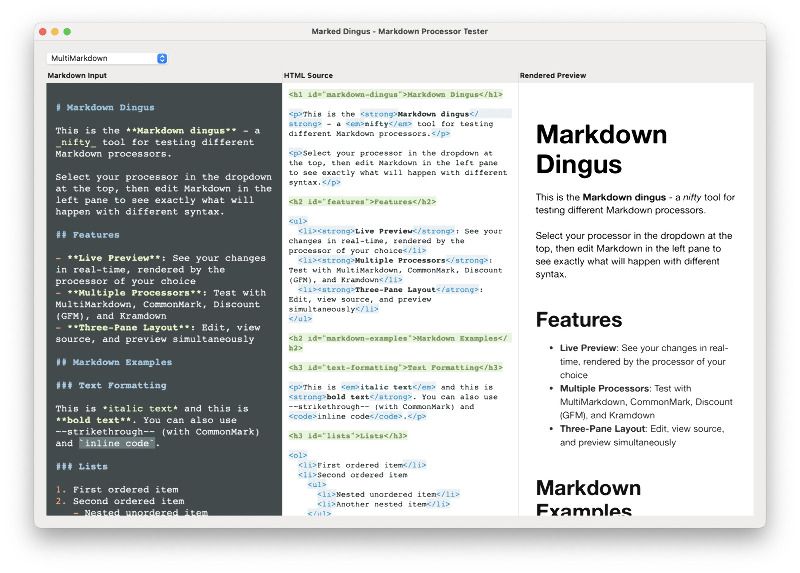
The Dingus window is divided into three synchronized panes:
1. Markdown Input (Left Pane)
- Syntax Highlighting: Your Markdown is highlighted with colors to make structure clear
- Live Editing: Type and see changes reflected instantly in the other panes
- Large Font: 21pt Menlo font for comfortable editing
Options dropdown (upper right of the left pane): The Options menu lets you toggle:
- Show line numbers: Displays a gutter on the left with one line number per paragraph (wrapped lines count as one line).
- Show invisibles: Shows spaces as mid-dots (·), tabs as a rightward arrow (→), and newlines as a carriage-return symbol (↵) in a light gray so you can spot stray whitespace.
- Highlight gremlins: Puts a light red background on non-ASCII characters (e.g. curly quotes, emoji) and a dark red background on problematic invisible characters (e.g. zero-width spaces). Normal tab and newline characters are not highlighted.
Your choices are saved and restored the next time you open the Dingus.
Find bar: Press ⌘F to show the find bar below the “Markdown Input” label. You can search and replace in the editor, use ⌘G for Find Next and ⇧⌘G for Find Previous, and replace one or all matches. Press the close button or ⌘F again to hide the find bar.
2. HTML Source (Middle Pane)
- Generated HTML: See exactly what HTML the selected processor creates
- Syntax Highlighted: HTML is color-coded for easy reading
3. Rendered Preview (Right Pane)
- Live Preview: See how your Markdown will look when rendered
-
Emoji Support: GitHub-style emojis like
:zzz:are converted to images - Auto-scrolling: Automatically scrolls to show your current edit position
Editing in the Dingus
The Markdown Input pane includes smart editing features to make writing Markdown faster and more natural.
Smart Newline (Return Key)
Pressing Return adapts to the current line:
-
Lists: On a list line (
-,*,+, or1.), inserts a new list item with the correct marker. Numbered lists continue with the next number. -
Blockquotes: On a line starting with
>, inserts a new blockquote line. -
Code fences: On a line with three or more backticks
(e.g.
```), inserts a blank line between the opening and closing fences. - Other lines: Inserts a normal newline.
Character Pairing
When you type an opening character, the editor automatically
inserts the closing character and places the cursor between
them. Supported pairs: " ' ( [ ` < .
- With selection: Wraps the selected text in the pair.
- Without selection: Inserts the pair with the cursor between them.
- Type-over: If the next character is already the closing delimiter, typing it again moves the cursor past it instead of inserting a duplicate.
-
Space in empty pair: If the cursor is between an empty pair (e.g.
(|)), typing a space replaces the closing character with a space.
Shortcut Keys
| Shortcut | Action |
|---|---|
| ⌘F | Show or hide the find bar in the Markdown Input pane |
| ⌘G | Find next (when find bar is visible) |
| ⇧⌘G | Find previous (when find bar is visible) |
| ⌘B |
Bold: wrap selection in ** or insert **|** with cursor between
|
| ⌘I |
Italic: wrap selection in _ or insert _|_ with cursor between
|
| ⇧⌘L | Cycle list marker (unordered ↔ ordered) |
| Tab | Indent line or list item |
| Shift+Tab | Outdent line or list item |
| ⌃⌘→ | Indent line or list item (same as Tab) |
| ⌃⌘← | Outdent line or list item (same as Shift+Tab) |
| ⌃⌘↑ | Move paragraph up (cut paragraph including newline, paste one line up) |
| ⌃⌘↓ | Move paragraph down (cut paragraph including newline, paste one line down) |
| ⌘K |
Insert or wrap a Markdown link: wrap selection as [text]() and place the cursor in the URL, or insert []() with the cursor between the brackets when there is no selection
|
| F6 |
Magic reference link: wrap selection as [text][n] and append a [n]: definition at the end of the document; when the caret is on an existing reference, jump between the inline marker and its definition
|
| F7 |
Magic footnote: insert [^n] at the caret (or after the current word) and append a matching [^n]: definition at the end of the document; when the caret is on an existing footnote, jump between the marker and its definition
|
| ⌘U | Toggle output pane (Source/Preview) |
| ⌥⌘↑ | Expand selection: word → inner/outer delimiters → sentence → paragraph → contiguous block (such as a table or code block) → enclosing list/blockquote/code block → document |
| ⌥⌘↓ | Contract selection back down through the same levels to the original caret position |
Tab/Shift+Tab (and ⌃⌘←/⌃⌘→) respect list structure and
blockquotes: they indent/outdent list items and add or
remove > from blockquote lines. Move paragraph up/down
selects the entire paragraph under the cursor (including its
trailing newline), cuts it, and pastes it above or below the
adjacent paragraph so paragraphs don’t merge.
Magic links and footnotes (F6 / F7)
The Dingus editor can build reference-style links and footnotes for you, assigning the next available number and appending the matching definition at the end of the document.
-
F6 (magic reference link): With text selected, wraps
the selection as
[text][n]and adds a new[n]:line at the end of the document so you can type the URL. Creating a new reference link requires a selection. When the caret is already on a reference link or its definition, F6 jumps between the inline marker and the definition (or creates the definition if it is missing). -
F7 (magic footnote): Inserts a numbered footnote marker
[^n]at the caret — or after the current word when the caret is inside one — and appends[^n]:with the selected text as the footnote body when there is a selection. When the caret is on an existing footnote marker or definition, F7 jumps between them.
Reference and footnote numbers are chosen automatically so you do not have to track IDs by hand. Neither shortcut runs inside fenced or indented code blocks.
Smart URL paste
When you paste and the clipboard contains a URL of the form
protocol://... with no spaces:
-
With a selection: the selection is turned into a
Markdown link:
[selected text](url). -
Without a selection: the URL is inserted as a
self-link:
<url>.
This makes it easy to turn copied URLs into links without manual typing.
Smart selection (⌥⌘↑ / ⌥⌘↓)
The Dingus editor supports semantic selection expansion:
-
⌥⌘↑ starts at the caret and expands the selection
through:
- the current word
- inner and outer delimited content (quotes, brackets, parentheses, and fenced code blocks)
- the current sentence
- the current paragraph
- the contiguous non-blank block of lines (for example, a whole table or multi-line code block with no blank lines)
- the enclosing list item, blockquote, or code block
- the entire document
- ⌥⌘↓ walks back down through the same levels until it returns to the original caret position.
Each press always moves to a strictly larger or smaller selection, so you never get “no-op” key presses while expanding or contracting.
Using the Dingus as an Editor
The Dingus is not meant to replace a full-featured text editor, but it can be very handy for quick edits with a live preview, especially when you want to see exactly how changes will render. All of the text-editing behavior described in Editing in the Dingus applies here.
Opening a file/creating a new file
-
Create a new file in the Dingus
- Choose (⌘N).
- When prompted, choose Dingus to start a new, unsaved Dingus document.
- New Dingus documents open with sample content selected; just start typing to replace it.
-
Open an existing file in the Dingus
- Use (⌥⌘O), or with the Dingus window active, click Open… in the status bar. The command opens the Dingus window if needed, then shows the Open panel.
- Choose any supported plain-text/Markdown file; its contents will replace the current Dingus buffer.
-
Open a Marked preview document in the Dingus
- From a normal preview window, use (⌥⌘E).
- The current document’s Markdown is loaded into the Dingus so you can experiment without touching the original file until you choose to save. Custom Rules are not applied in the Dingus; see Custom Rules do not apply.
Saving a file
-
Save changes to the current file
- In the Dingus window, click Save in the status bar, or use (⌘S).
- If the Dingus document hasn’t been saved yet, you’ll be prompted for a location and filename; after that, ⌘S updates the same file.
-
Save As / duplicate to a new file
- Use (⌥⌘S).
- This always opens a Save As dialog and writes the current Dingus contents to a new file without overwriting the original.
Previewing in Marked
-
Open the Dingus document as a full Marked preview
- Click Open in Marked in the Dingus status bar, or use
(⌘P).
- If the Dingus document is unsaved or has unsaved changes, you’ll be prompted to save first; then Marked opens a standard preview for that file.
Using these commands, you can treat the Dingus as a lightweight editor for quick fixes and experiments, then jump to a full Marked preview or your regular editor when you’re ready for more extensive editing.
Processor Selection
Use the dropdown at the top to switch between different Markdown processors:
- MultiMarkdown: Full-featured processor with tables, footnotes, and math support
- CommonMark (GFM): Standard, fast processor following the CommonMark specification
- Discount: GitHub Flavored Markdown with task lists and tables
- Kramdown: Advanced processor with additional features like IALs and typography
Why Use the Dingus?
Understanding Processor Differences
Different Markdown processors handle syntax differently. The Dingus helps you:
- Compare Output: See exactly how each processor renders the same Markdown
- Debug Issues: Identify why certain syntax isn’t working as expected
- Learn Syntax: Understand the subtle differences between processor implementations
Testing Before Writing
Before committing to a particular Markdown style in your documents:
- Validate Syntax: Ensure your Markdown will render correctly
- Choose Processors: Decide which processor works best for your content
- Experiment Safely: Try new syntax without affecting your actual documents
Common Use Cases
Table Syntax Differences
Some processors handle table syntax differently. The Dingus lets you see which processor best supports your table formatting needs.
Footnote Support
Not all processors support footnotes. Use the Dingus to verify footnote syntax works with your chosen processor.
Math and Special Characters
Test how different processors handle mathematical expressions and special typography characters.
Tips for Effective Use
- Start Simple: Begin with basic Markdown and gradually add complexity
- Test Edge Cases: Try unusual syntax combinations to understand processor limits
- Compare Side-by-Side: Switch between processors to see differences clearly
- Use Real Content: Copy actual content from your documents to test real-world scenarios
The Dingus is a powerful tool for anyone who wants to understand the nuances of different Markdown implementations and ensure their content renders correctly across various platforms and processors.