Settings: Preview
Options in the :
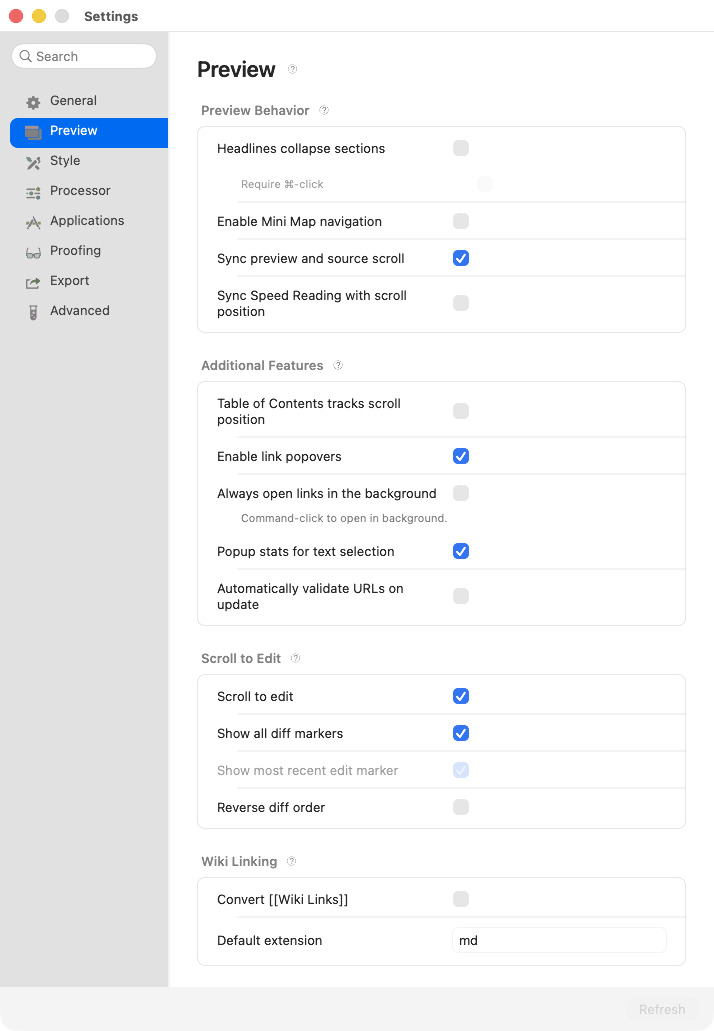
Preview behavior
- Enable Mini Map navigation
- Generate a visual map of the document which shows up when “0” is pressed. May cause short delays when rendering large documents.
- Headlines collapse sections
- Clicking a headline element collapses the section between it and the next headline.
- Require ⌘‑click
- If this is checked, headlines will only collapse/expand when clicked with the Command key held.
- Sync preview and source scroll
- When your editor supports it, keep the preview scrolled to match the corresponding location in the source document.
- Sync Speed Reading with scroll position
- Keep the Speed Reading overlay aligned with the preview scroll position. You can also toggle this from the Speed Read overlay.
Scroll to edit
- Scroll to edit
- When updating the preview, Marked can determine the first point where the document changed and automatically scroll to it. This keeps the preview in sync with your current location in the document you’re editing. The most recent edit marker is the first difference in the document since the last refresh. Enabling “Reverse diff order” will instead consider the last difference in the document (from top to bottom) to be the most recent edit.
- Show most recent edit marker
- A small red marker appears at the point of the first edit detected. Turn this off to make it invisible. (Requires Scroll to edit.)
- Show all diff markers
- If this is enabled, all differences between the last refresh and the current contents will be highlighted in the gutter. You can navigate through the edits, scrolling them to the middle of the view, using e (forward) and ⇧+E (backward).
- Reverse diff order
- If this is enabled, diffs will be marked in reverse order (from bottom to top). This affects the navigation, so e will navigate up, and ⇧+E will navigate down. The “most recent edit” will become the last difference in the document.
Additional features
- Table of Contents tracks scroll position
- Table of Contents highlights current section.
- Show current header at top of preview
- Shows a small heading breadcrumb above the preview. Updates as you scroll. Click a heading in the path to jump to it.
- Popup stats for text selection
- Show a word count popup for the selected text whenever a selection is made.
- Enable link popovers
- Show a popup menu when external links are clicked and held before releasing.
- Automatically validate URLs on update
- Validate URLs on document load and refresh. Only displays results if there are errors.
- This runs link validation every time the document updates (if you have a significant number of links, this can be a slow process and should be avoided).
Wiki linking
- Convert [[Wiki Links]]
-
Enable Marked’s wiki navigation for
[[wiki link]]syntax.
- Default Extension
-
The filename extension Marked uses when resolving wiki links that do not include an extension (for example,
md).
Appearance
- Dark Mode
- Display all windows in “High Contrast” mode, with dark chrome and, if available, the inverted version of the current Style (may not apply to Custom Styles).
- Match System Setting
- Switch Dark Mode automatically when macOS Dark Mode is turned on or off system-wide.
- Show full path in window title
- When enabled, Marked will display the full path to the current document in the window title.