Custom Style Generator
The Custom Style Generator is a web-based tool that lets you create custom styles for Marked without writing CSS by hand. It provides a visual interface with controls for typography, colors, spacing, and more, with a live preview that updates as you make changes.
Contents
Accessing the Generator
The Style Generator is available at https://markedapp.com/style-generator/. You can use it directly in your web browser — no installation required.
Getting Started
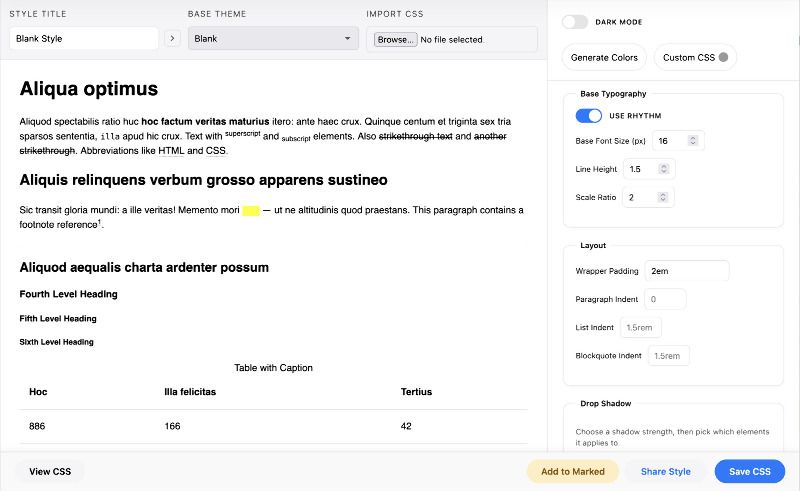
When you first open the generator, you’ll see:
- Preview pane (left): A live preview of your style applied to sample markdown content
- Controls pane (right): All the style controls organized into sections
- Toolbar (top): Style title, base theme selector, and CSS import option
Choosing a Base Theme
Start by selecting a Base Theme from the dropdown. This provides a foundation for your style — you can then customize every aspect of it. Popular options include Blank (for starting from scratch), Default, and various built-in themes.
Importing Existing CSS
If you have an existing CSS file you’d like to use as a starting point, click Import CSS and select your file. The generator will load those styles and you can then modify them using the controls.
Style Controls
The generator organizes controls into logical sections:
Base Typography
Control the fundamental typography settings:
- Use Rhythm: When enabled, uses a mathematical typographic scale for consistent heading sizes and spacing
- Base Font Size: The root font size (typically 16px)
- Line Height: The spacing between lines of text
- Scale Ratio: The ratio used for the typographic scale (affects heading sizes)
Layout
Adjust spacing and indentation:
- Wrapper Padding: Space around the content area
- Paragraph Indent: First-line indentation for paragraphs
- List Indent: Indentation for lists
- Blockquote Indent: Left margin for blockquotes
Fonts
Configure font families and weights:
- Header Fonts: Comma-separated list of fonts for headings (e.g., “Georgia, serif”)
- Body Fonts: Comma-separated list of fonts for body text
- Header Weight: Font weight for headings (100–900)
- Body Weight: Font weight for body text
- Bold Weight: Font weight for bold text
- Letter Spacing: Character spacing for headers and body text
Google Fonts
Add Google Fonts to your style:
- Type a font name in the search field (autocomplete suggestions appear)
- Optionally specify styles (e.g., “400,400i,700” for regular, italic, bold)
- Click Add to include it
- Use Browse Google Fonts to explore the full catalog with previews
Added fonts appear in a list below the controls — click the × to remove them.
Colors
Set colors for various elements:
- Background: Page background color
- Base Text: Default text color
- Header Color: Color for all headings (can be overridden per heading level)
- Body Color: Body text color
- Link Color: Color for links
-
Emphasis Color: Color for emphasized text (
<em>) -
Strong Color: Color for strong text (
<strong>) -
Mark Background: Background color for highlighted text (
<mark>)
Individual heading colors (H1–H6) can be set separately — use Reset to clear an override and return to the header color.
Dark Mode
Toggle Dark Mode to preview and configure dark mode colors. When enabled, you’ll see separate color controls for dark mode variants. Dark mode styles apply when .inverted is set on the body element in Marked.
Use Generate Colors to automatically create a dark mode palette based on your light mode colors.
Images
Control image appearance:
- Max Width: Maximum width for images (e.g., “100%”, “800px”)
- Border Radius: Rounded corners (e.g., “8px”, “0”)
- Alignment: Document default, Left, Center, or Right
Blockquotes
Style blockquotes:
- Left Border Width: Thickness of the left border
- Left Border Color: Color of the left border
- Background Color: Background color for blockquotes
- Font Style: Normal or Italic
- Left Margin: Spacing from the left edge
- Nested Left Margin: Spacing for nested blockquotes (can be “inherit”)
Separate controls are available for dark mode blockquotes.
Lists
Configure list appearance:
- List Style Position: Inside or Outside (where bullets/numbers appear)
- Left Margin: Spacing from the left edge
- Nested Left Margin: Spacing for nested lists (can be “inherit”)
Definition Lists
Style definition lists (<dl>, <dt>, <dd>):
- DL Indent: Overall indentation
- DT (term) settings: Font size, weight, and style
- DD (definition) settings: Font size, weight, style, and indentation
Tables
Comprehensive table styling:
- Background Color: Table background
- Border Color: Border color for cells
- Table Text Color: Default text color in tables
- Alternating Rows/Columns: Enable zebra striping with custom colors
- Border: Show/hide table outline
- Grid: Show/hide internal grid lines
- Alignment: Left or Center
- Border Radius: Rounded corners
- Max Width: Maximum table width
- Cell Padding: Internal spacing
- Header settings: Font weight, size, and style
- Caption settings: Font weight, size, style, and text color
Separate controls are available for dark mode tables.
Code Blocks
Style code blocks and inline code:
- Code Font Family: Monospace font stack
- Background: Background color
- Border Color: Border color
- Border Radius: Rounded corners
- Wrap Mode: No wrap (pre), Preserve + wrap (pre-wrap), or Normal (wrap)
- Code Padding: Internal spacing
Separate controls are available for dark mode code blocks.
Footnotes
Style footnotes:
- Marker Color: Color of footnote markers
- Text Color: Color of footnote text
- Text Font Style: Normal or Italic
Separate controls are available for dark mode footnotes.
Drop Shadow
Add drop shadows to elements:
- Choose shadow Strength: Soft, Medium, or Strong
-
Select which elements to apply shadows to:
- Images
- Code blocks
- Blockquotes
- Tables
Custom CSS
For advanced customization beyond the available controls, use the Custom CSS button to open a code editor. Any CSS you add here will be appended to the generated style and automatically scoped to work within Marked’s document structure.
The editor includes syntax highlighting and validation — invalid CSS will be flagged with error messages.
Live Preview
The preview pane shows your style applied to sample markdown content including:
- Headings (H1–H6)
- Paragraphs with various inline formatting
- Tables
- Code blocks
- Images
- Lists (ordered and unordered)
- Blockquotes
- Definition lists
- Footnotes
- Task lists
Changes update in real-time as you adjust controls.
Saving and Sharing
Once you’re happy with your style, you have several options:
View CSS
Click View CSS to see the complete generated CSS in a popover. You can copy it to your clipboard or review it before saving.
Save CSS
Click Save CSS to download your style as a CSS file. You’ll be prompted to enter metadata (title, author, description) before downloading.
Add to Marked
Click Add to Marked to directly add the style to your Marked installation. This requires Marked to be running and will open a dialog to confirm the style name and author information.
Share Style
Click Share Style to publish your style to the Marked Style Gallery for others to use. You’ll need to provide:
- Style Title
- Your Name
- Author URL (optional)
- Description
- Note (optional)
A preview of your style will appear in the share dialog before publishing.
Metadata
Use the metadata section (expandable via the arrow button next to the style title) to set:
- Author: Your name (persists across sessions)
- Author URL: Your website or profile URL
- Description: A description of the style
- Note: Additional notes (not included in shared styles)
This metadata is included in the CSS file header and used when sharing styles.
Tips
- Start with a base theme close to what you want, then customize
- Use the Blank theme if you want complete control from scratch
- Enable Rhythm for mathematically consistent typography
- Test your style with the Dark Mode toggle if you plan to support it
- Use Custom CSS sparingly — most needs can be met with the built-in controls
- Preview your style with various content types before sharing
Browser Compatibility
The Style Generator works best in modern browsers (Chrome, Firefox, Safari, Edge). It requires JavaScript to be enabled.