Using the Browser Extensions
Marked includes browser extensions that let you send page URLs or selected content directly into Marked 3.
Contents
Install
Download and install from https://markedapp.com/extensions:
- Firefox / Zen
- Chrome / Brave / Edge
- Safari (bundled)
How the extension works
When you click an extension button, it opens a custom URL handled by Marked 3 using the x-marked-3://markdownify scheme.
Markdownify URL
In the extension popup, click Markdownify URL to send the current page URL to Marked.
Markdownify Selection
In the extension popup, click Markdownify Selection when you have a selection in the page.
Marked receives the HTML for the current selection and converts it into Markdown.
Select Section (block selection mode)
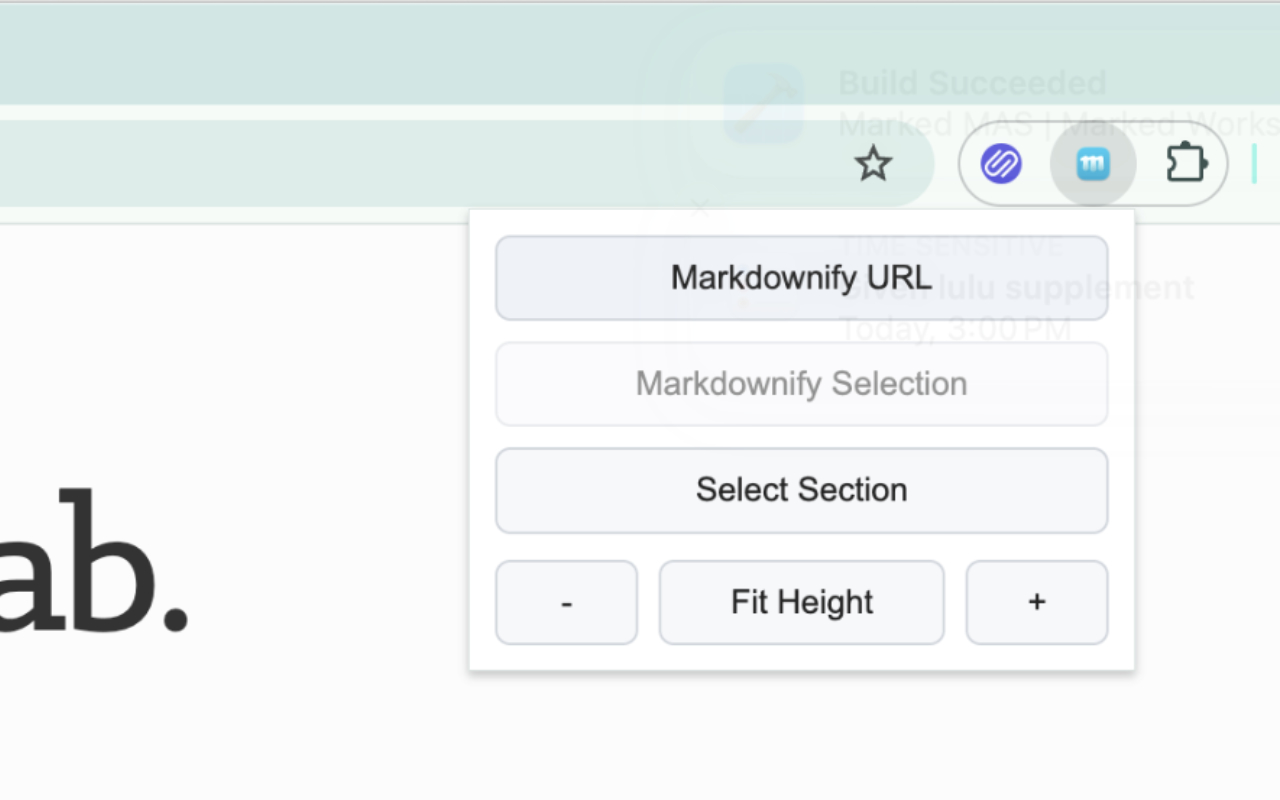
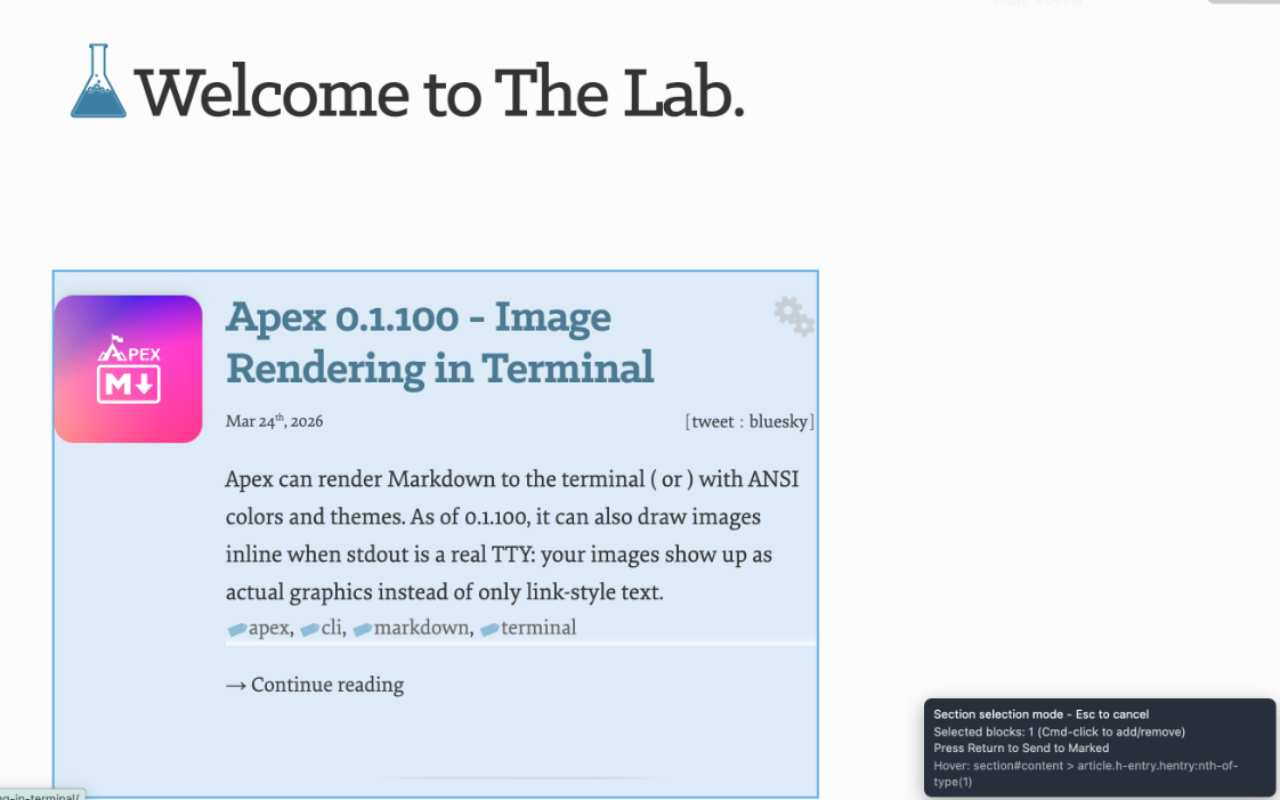
Click Select Section to enter “section selection mode”:
- Hover over the page to highlight block elements you can select.
- Click a block to immediately send it to Marked (single send).
- Cmd-click blocks to select multiple blocks (Cmd-click again to remove a block).
- Press Return to send the currently selected blocks.
- Press Esc to cancel section selection mode.
While selecting, the popup also provides zoom controls to help you click small or dense sections:
-
-zooms out - Fit Height zooms so the page fits the viewport height
-
+zooms in